Create and update HubSpot contacts from survey answers
Send the contact fields you select when a survey completes. HubSpot matches an existing contact by email or creates one. This connection does not enroll contacts in marketing subscriptions.
You need a Pro workspace and its owner role to save credentials. No third-party scripts are added to the respondent’s survey.
Connect HubSpot
- Create a HubSpot private app with the crm.objects.contacts.write scope and copy its access token. You need permission to create private apps in the HubSpot account. Follow HubSpot’s linked instructions if your account’s settings navigation differs.
- Add an Email question to your survey. Add separate questions for any first name, last name, company or phone value you want to send. An email typed into an ordinary text question cannot be selected as the contact email mapping.
- As the Plumeform workspace owner, open the survey builder → Settings → Delivery → Connected delivery. Select HubSpot and paste the Private app access token.
- Choose Contact email. Map only the optional fields you intend to update; leave the others at Do not update. Repeated-group questions are not offered as contact mappings.
- Optionally set a numeric answer condition. Check Enabled, Save connection, then submit a normal completed response with a valid test contact email you control. Verify that contact in HubSpot and inspect Recent delivery status.
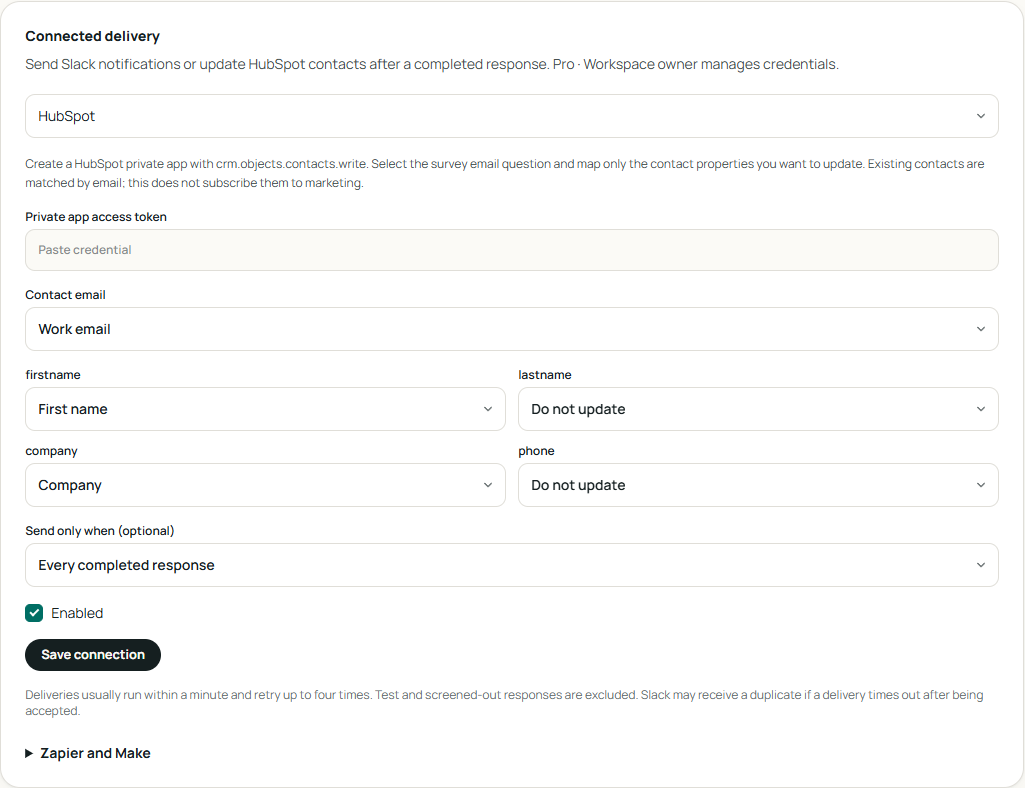
Map questions to contact properties
An Email question titled Work email maps to Contact email. Separate First name and Company questions map to firstname and company. Leaving lastname and phone at Do not update keeps them out of this update. Use separate name questions; this connection does not split a full name automatically.
Verify, retry or disconnect
Only new completions are queued. Deliveries usually run within a minute, with up to four attempts in total. Open Recent delivery status to inspect attempts and the latest error. After correcting the connection, use Retry on a failed delivery.
Leave the credential field blank when saving other changes to keep the saved credential. To replace it, enter the new value and save. Disconnect removes pending deliveries; it does not undo messages or contact updates already sent. A provider error does not discard the survey response.
If something does not arrive
The email question is not listed
Contact email accepts the Email question type, outside a repeated group. Add that type and select it in the mapping. Check the published questionnaire includes the question.
A completion did not create a contact
A missing or invalid mapped email skips delivery. Check the answer condition too. Partial, test-mode and screened-out responses are excluded; existing responses are not backfilled when you connect.
HubSpot rejected the request
Check that the private app token is current and has crm.objects.contacts.write. Save a replacement token if needed, then retry the failed delivery. Recheck the property mapping if HubSpot reports a validation error.
An existing contact changed
Matching is by email. Mapped, supplied fields update that contact, so only map fields this survey is allowed to maintain. Disconnecting does not undo contact updates already delivered.