Import
Move a Qualtrics survey to Plumeform
Export a QSF, review supported questions and skipped items, then rebuild logic and verify an editable Plumeform draft before publishing.
What this migration moves
QSF import creates a new draft from supported question types and answer choices. It requires Pro, a verified email and permission to create surveys in the workspace. Conversion is deterministic and does not use AI. Your Qualtrics survey is not changed.
This is a questionnaire import. Existing responses, contacts, distributions and reports stay in Qualtrics. Export and retain historical response data separately. Survey-flow branches, display logic, piping, scoring, randomization, quotas and embedded-data rules need to be rebuilt in Plumeform.
Export the questionnaire as QSF
In Qualtrics, open the survey editor and use Tools → Import/Export → Export Survey. Save the .qsf file. This is different from a response-data CSV or a printable Word questionnaire. Follow the official Qualtrics instructions linked below if the menu differs in your account.
Keep a copy of the original export and notes on your Survey Flow. Plumeform accepts one QSF file at a time, up to 2,000,000 bytes (2 MB). A QSF represents one survey; it does not automatically create a longitudinal study.
Read the import report before creating a draft
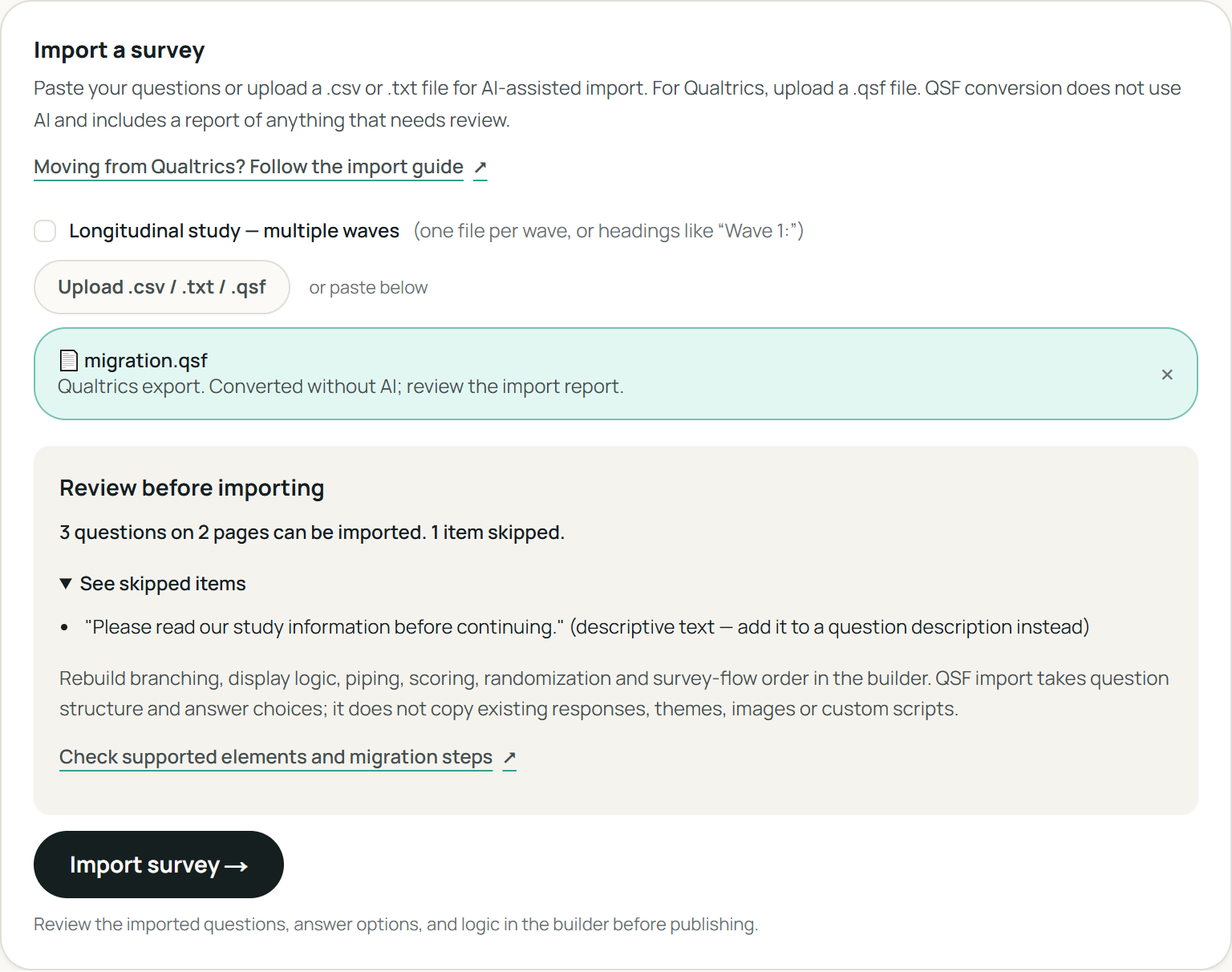
Open your Plumeform dashboard and find Import a survey. Select Upload .csv / .txt / .qsf and choose the QSF. Leave the multiple-waves option off for this import. The file is inspected locally before you submit it.
- 1Confirm the filename and the count of questions and pages that can be imported.
- 2Expand See skipped items when it is present. Save notes about anything you need to recreate, including descriptive text or unsupported question types.
- 3Read the migration limitations even when the skipped-item count is zero. That count does not certify your logic, styling or survey flow.
- 4Choose Import survey to send the selected file for conversion and save the new draft. Review it in the builder before publishing.
Supported elements and what to check
Single-answer choices map to multiple choice, multi-answer choices to checkboxes, and dropdowns to dropdowns. Qualtrics NPS maps to NPS. Choice ordering follows the export’s choice order, and Force Response becomes Required where present.
Text entry maps to short or long text. Recognized email and numeric validation maps to Email and Number questions. Other custom validation rules need review. Standard matrices map to Likert rows and columns; verify advanced matrix variants manually rather than assuming equivalent behavior.
Rank Order maps to ranking and Constant Sum to point allocation. Sliders become opinion scales: minima normalize to 0 or 1, and maxima are bounded to 2–100. Check numeric ranges, totals and labels against the original.
Each nonempty imported block becomes a page; trash blocks are omitted. Block order follows the exported block list, not Survey Flow. HTML becomes plain text, so formatting and embedded images do not transfer. Descriptive Text/Graphic items and unsupported question types are listed as skipped. Add essential instructions to the welcome screen or question descriptions.
Work through the draft before publishing
Compare the original and imported surveys side by side. A successful conversion means a draft was created; it does not mean the survey is ready for respondents.
- 1Check every question, choice order, required setting, matrix row, scale endpoint and point total. Restore descriptions and media where needed.
- 2Reorder pages to match the intended flow. Rebuild show/hide rules, jumps, piping, screening, scoring and any experiment assignment. Preview each path, including an answer that matches no rule.
- 3Set consent, privacy wording, branding, language, completion messages and panel redirects for the new survey. Reconnect integrations separately.
- 4Preview on a phone and desktop. Publish only when the paths are correct, then complete a test-mode response and inspect the results and export.
- 5Replace distribution links only after the new survey is verified. Keep the original response archive and document the date and questionnaire changes when comparing data across systems.
If the file does not import
For No supported questions could be read, confirm the file is a survey QSF and export it again. Renaming a CSV or Word file to .qsf does not convert it. An export containing only unsupported or descriptive items cannot create a usable draft.
For the size limit, reduce the source survey or move it in smaller questionnaires. For a save error after successful conversion, check your workspace role and Pro access, then retry. Keep the original file so you can compare what was created.
If something is missing from a successful import, check the skipped-item list and the limitations above. Do not publish until essential instructions and routing have been restored.